Put your network device console
in any browser
An on-site phone with an OTG serial cable plugs into the device's console port. Open a link from anywhere and type commands, paste configs or capture boot logs — exactly as if you were sitting on the cable. No client, no VPN.
Highlights
Six reasons remote debugging becomes as easy as sending a messageSee it in action
Six steps of a remote fix — autoplays, jump to any step; or try demo mode right now, no hardware needed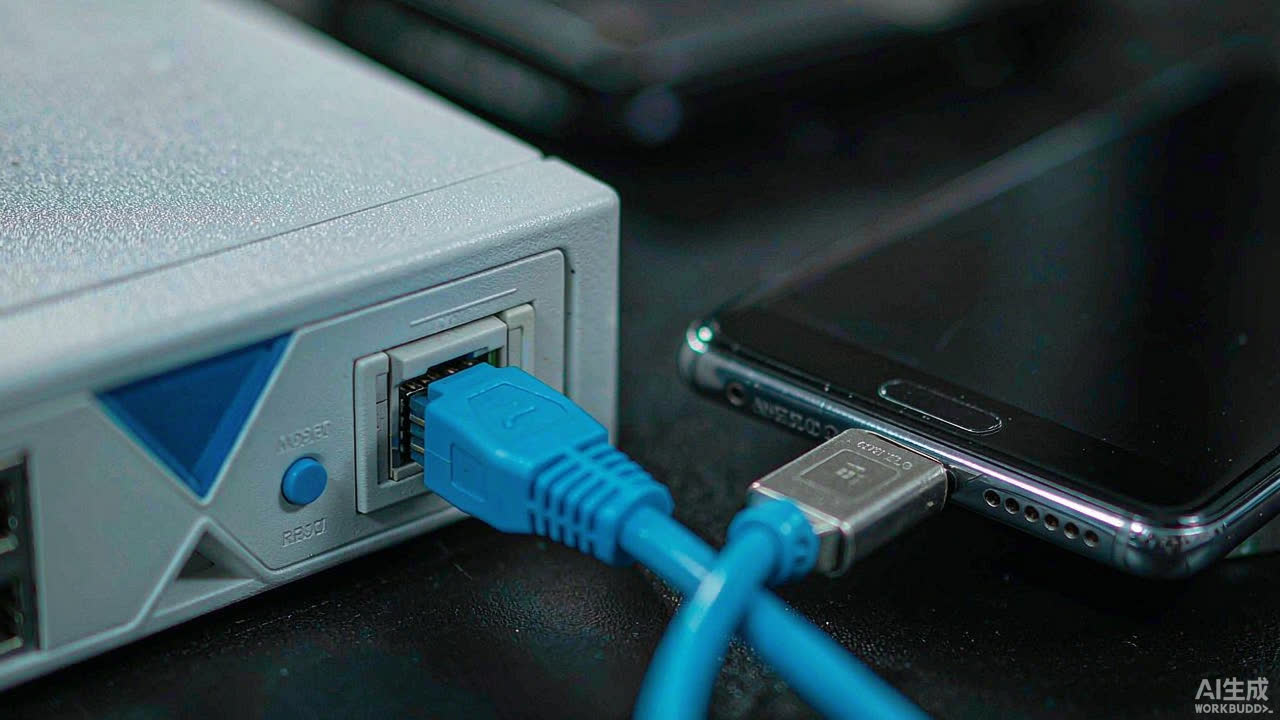 1 / 6
1 / 6
On-site — plug the phone in
A field phone with an OTG serial cable plugs into the console port — ready in seconds, serial settings auto-matched.
Bridge to the cloud
The field phone registers its Console ID and keeps a secure relay link to the cloud.
One-tap invite
Generate a one-time invite link or QR code and hand it to the remote engineer.
Engineer joins in any browser
No client, no VPN — opening the link drops them straight into the live session.
Work the device live
Type, paste configs and capture boot logs with real-time echo — as if you were right there.
Collaborate with the team
Pull a few engineers into the same session — they join from anywhere, see everything and pitch in together.
One Console, Two Roles
Pick the door that fits today's jobField · Phone Serial Bridge
- Auto-generates a Console ID and invite link
- Web Serial, driverless: FTDI / CH340 / CP210x
- Native Android app stays online with the screen off
- Windows desktop app: local terminal plus one-click cloud sharing
Engineer · Web Terminal
- Any PC or phone browser — zero install
- Full xterm: tab-complete, paste large configs, export logs
- Edit boot config and run reload directly
Up and running in three minutes
From cable to first commandField creates a session code
Open the field page on a phone — it generates a 5-character Console ID (one letter + four digits, e.g. A1203). Share the invite link with the remote engineer.
OTG into the console port
USB-C / OTG → USB-RS232 adapter → console cable into the device port. In Chrome tap “Open serial”, default 9600-8-N-1.
Remote engineer starts typing
The invite link opens straight into a terminal. Anyone can watch; the most recent typer holds the keyboard. Paste configs and capture logs on the fly.
Accounts & plans
The field bridge is always free — the engineer side scales with youFree · instant guest
- No sign-up — open and type
- ~30 min/day free quota per console ID
- Solo join only
Sign up · free account
- Unlimited session time
- Multi-engineer viewing & control handover
- 1 remote console at a time
Pro
- Up to 5 remote consoles at once
- Priority relay · longer sessions
- One-time payment, auto-expires, renew anytime
Already have a code? Redeem it above and Pro activates instantly. Questions before buying? Contact the site owner.
Redeem activation code
After payment the site owner sends you a one-time code — enter it below to activate or extend Pro instantly.
Questions, answered
What people usually ask first — collapsed by defaultOpen the FAQ (8 questions)tap to expand / collapse
How are the pieces connected? See the wiring diagram
i Only a phone plus an OTG serial cable is needed on site. Data travels over an encrypted path through the cloud relay, and the engineer simply joins from a browser — no public IP and no config changes on the device.
What hardware do I need on-site, and what does it cost?
An Android phone (Chrome or the native app), a USB-C/OTG to RS232 adapter (FTDI / CH340 / CP210x — driverless), and the device's own console cable. Total cost is tens of dollars — not a several-thousand-dollar dedicated console server.
Which devices are supported?
Anything with an RS232 console port: Cisco/Huawei switches and routers, firewalls, APs, server management serial ports. Baud rate is configurable, default 9600-8-N-1.
Does it work on iOS?
The field bridge needs Web Serial: Android Chrome or the native app works. iOS Safari doesn't support Web Serial yet — use a PC / Raspberry Pi running bridge-node instead. The engineer side is unlimited: any PC / Mac / phone browser can join the terminal.
Is it secure? Can others stumble into my session?
Everything runs over HTTPS / WSS, and session-level end-to-end encryption (AES-256-GCM) is one tap away — the key rides only in the invite link or is derived locally from a passphrase, so even the relay can't read the serial data. A field device must register its Console ID (with a device label) before it appears on the cloud, and the field side can require in-person approval before an engineer joins. A console ID only becomes valid after the field side registers it — you can't create a session from an unregistered ID.
What if several engineers join at once?
Multiple engineers can be online in one session: viewers watch read-only output, while keyboard control is held by exactly one person at a time and can be handed over. One keyboard, shared screen.
What happens if the field connection drops?
When the field side disconnects, the session is kept for a grace period; it reconnects automatically when the network recovers, and remote engineers see a clear notice instead of a dead terminal.
How much does it cost? Free, Sign up or Pro?
The field bridge is always free. On the engineer side there are three tiers: Free (guest, no account) — quick to try but ~30 minutes/day per console and solo only; Sign up — a free account removes the time limit, enables multi-engineer viewing/collaboration and 1 simultaneous console; Pro for concurrent consoles and priority relays — $5 for 30 days, one-time, auto-expires back to free. Buy Pro with a card: the card button above opens our payment partner's secure checkout, and your account is activated right after payment. Already have an activation code? Click Redeem above to activate or extend instantly. A self-hosted edition and team plans are still in development.
Feedback & suggestions
Hit a snag, want a feature, or just want to tell us something? Write it below. Leave an email if you'd like a reply — we'll get back to you.